



AirBot by DiotSiaci for Microsoft Teams
AirBot by Diot Siaci for Microsoft Teams is a business productivity application that enables users to interact with TeemantSoft AI agents directly within Microsoft Teams. The app is designed for organizations that use structured conversational workflows to support operational processes such as data collection, checklist execution, troubleshooting, incident declaration, and document-based guidance. Through Microsoft Teams, users can exchange messages with a Teemant AI agent in a familiar interface, while the agent follows predefined guides and workspace rules configured in the Teemant platform.
The purpose of the app is to make business workflows easier to access and complete from within a collaboration tool already used by employees and authorized users. Depending on how the organization has configured AirBot by Diot Siaci, the app can guide users through step-by-step questions, collect structured information, apply validation rules, support recurring operational procedures, and help ensure that required data is complete before the process moves forward. Teemant workspaces and guides are used to organize these interactions and determine which bots, workflows, and users are associated with a given environment.
AirBot by Diot Siaci for Microsoft Teams can be deployed for individual users or more broadly through administrative setup, depending on the organization’s Microsoft Tenant configuration. Once configured, the AirBot by Diot Siaci appears as an available app in Microsoft Teams and can be used to initiate supported workflows.
The app is part of the wider TeemantSoft platform, which supports AI-assisted operational processes across channels such as Google Chat, Microsoft Teams, WhatsApp, and email. Information collected through the app can be structured and routed into the organization’s existing information systems according to the customer’s configuration.
Using the AirBot by DiotSiaci Bot
Once the application is installed, users can start interacting with the AirBot by DiotSiaci bot directly in Microsoft Teams:
Finding the Bot: If your admin has not pinned it, click the Apps icon at the bottom left of Teams and search for "AirBot". Click Add.
Starting a Conversation: Once added, the bot will appear in your
Chat list. Send a simple message like "Hello" or "Start" to trigger the initial greeting.
1️⃣ Workspace selection
If users have access to several workspaces, a menu will appear listing all available workspaces.
They must select the correct one before continuing.
2️⃣ Bot selection
If multiple AI bots are available within the selected workspace, users will be prompted to choose which bot they want to interact with.
After selection, the conversation will start automatically.
3️⃣ Managing the conversation
During the conversation, users can freely exchange with the AI agent.
If an error occurs or they wish to stop the current interaction, they can type the command
/end
to terminate the conversation safely.
Installing AirBot by DiotSiaci in Microsoft Teams
For Teams Administrator
This section is for IT Admins managing the Teams Admin Center (TAC).
- App Approval & Permissions: Log in to the Microsoft Teams Admin Center. Navigate to Teams apps > Manage apps. Search for "AirBot by Diot Siaci". Ensure the status is set to Allowed.
- Organizational Deployment (Setup Policies): To ensure the bot is automatically available for employees, go to Setup policies. Under the Installed apps section, click Add apps and search for AirBot. This "force-installs" the app for designated users or the entire organization.
- Pinning the App (Optional): In the same Setup policies menu, add AirBot to the Pinned apps list. This places the AirBot icon directly on the users' sidebar (left-hand rail) for quick access.
- Consent to Permissions: Review the permissions requested by the bot (typically accessing user profiles and sending messages). Click Grant admin consent to prevent users from seeing permission prompts individually.
For Teemant Administrator
As a Teemant Administrator you will registrate your Microsoft Tenant within Teemant.
- Open AirBot by Diot Siaci (see
above) send a message or click "Get Started" to initiate the setup with your Teemant credentials.
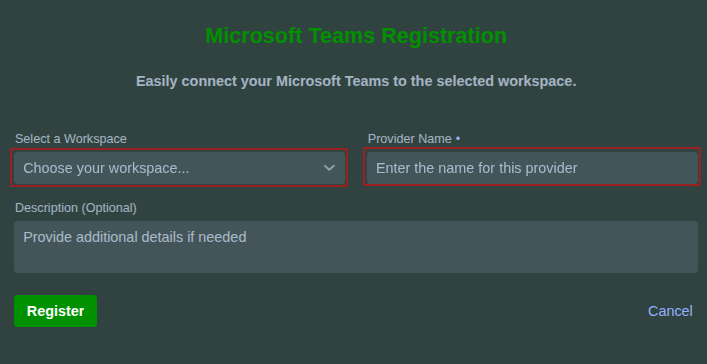
- Workspace selection Choose the workspace or workspaces that your Microsoft Teams users will have access to. Note: In most cases, only one workspace is used, but you may configure several — for example, to distinguish between development, testing, and production environments for your AI agents.
- Provider name Assign a name to this Microsoft Teams connection. This name will appear in the list of channels on the Teemant platform to help you manage your integrations.
- Description (optional) Add a comment or note if needed. This information will also be visible in the Teemant channel list to make identification easier for your team.
Legal Information
To support transparency, compliance, and secure use of the AirBot by Diot Siaci in Microsoft Teams, the following legal pages provide important information about how the service is operated and how data may be processed when the app is used.
These pages explain the applicable privacy policy, terms, and related legal information associated with the TeemantSoft platform and its connected communication channels.
Because AirBot by Diot Siaci for Microsoft Teams is part of a broader platform used to manage structured AI-assisted business interactions, these legal documents help clarify the responsibilities of TeemantSoft, the customer organization, and authorized users when accessing the service.
Support
For any first-level support request, please contact the support team directly at dscs-ai-support@diot-siaci.com.
When writing in English, keep your message simple and clear, and include the main issue, the relevant context, and any useful details so the support team can understand the request quickly and respond efficiently.
