Teemant for Google Chat is a business productivity application that enables users to interact with TeemantSoft AI agents directly within Google Chat. The app is designed for organizations that use structured conversational workflows to support operational processes such as data collection, checklist execution, troubleshooting, incident declaration, and document-based guidance. Through Google Chat, users can exchange messages with a Teemant AI agent in a familiar interface, while the agent follows predefined guides and workspace rules configured in the Teemant platform.
The purpose of the app is to make business workflows easier to access and complete from within a collaboration tool already used by employees and authorized users. Depending on how the organization has configured Teemant, the app can guide users through step-by-step questions, collect structured information, apply validation rules, support recurring operational procedures, and help ensure that required data is complete before the process moves forward. Teemant workspaces and guides are used to organize these interactions and determine which bots, workflows, and users are associated with a given environment.
Teemant for Google Chat can be deployed for individual users or more broadly through administrative setup, depending on the organization’s Google Workspace configuration. After installation, authorized users may be asked to sign in, register the Google Chat connection with a Teemant workspace, and confirm the provider settings inside the Teemant platform before starting to use the app. Once configured, the Teemant AI agent appears as an available contact in Google Chat and can be used to initiate supported workflows.
The app is part of the wider TeemantSoft platform, which supports AI-assisted operational processes across channels such as Google Chat, Microsoft Teams, WhatsApp, and email. Information collected through the app can be structured and routed into the organization’s existing information systems according to the customer’s Teemant configuration.
Using the Teemant Bot
Once the application is installed, users can start interacting with the Teemant bot directly in Google Chat.
1️⃣ Workspace selection
If users have access to several workspaces, a menu will appear listing all available workspaces.
They must select the correct one before continuing.
2️⃣ Bot selection
If multiple AI bots are available within the selected workspace, users will be prompted to choose which bot they want to interact with.
After selection, the conversation will start automatically.
3️⃣ Managing the conversation
During the conversation, users can freely exchange with the AI agent.
If an error occurs or they wish to stop the current interaction, they can type the command
/end
to terminate the conversation safely.
Legal Information
To support transparency, compliance, and secure use of the Teemant app in Google Chat, the following legal pages provide important information about how the service is operated and how data may be processed when the app is used.
These pages explain the applicable privacy policy, terms, and related legal information associated with the TeemantSoft platform and its connected communication channels.
Because Teemant for Google Chat is part of a broader platform used to manage structured AI-assisted business interactions, these legal documents help clarify the responsibilities of TeemantSoft, the customer organization, and authorized users when accessing the service.
- General Privacy Policy (Non-EU Regions)
- Privacy Policy for Users in the European Economic Area (EEA), United Kingdom, and Switzerland
This guide walks you through the steps required to install and configure the Teemant app within Google Chat.
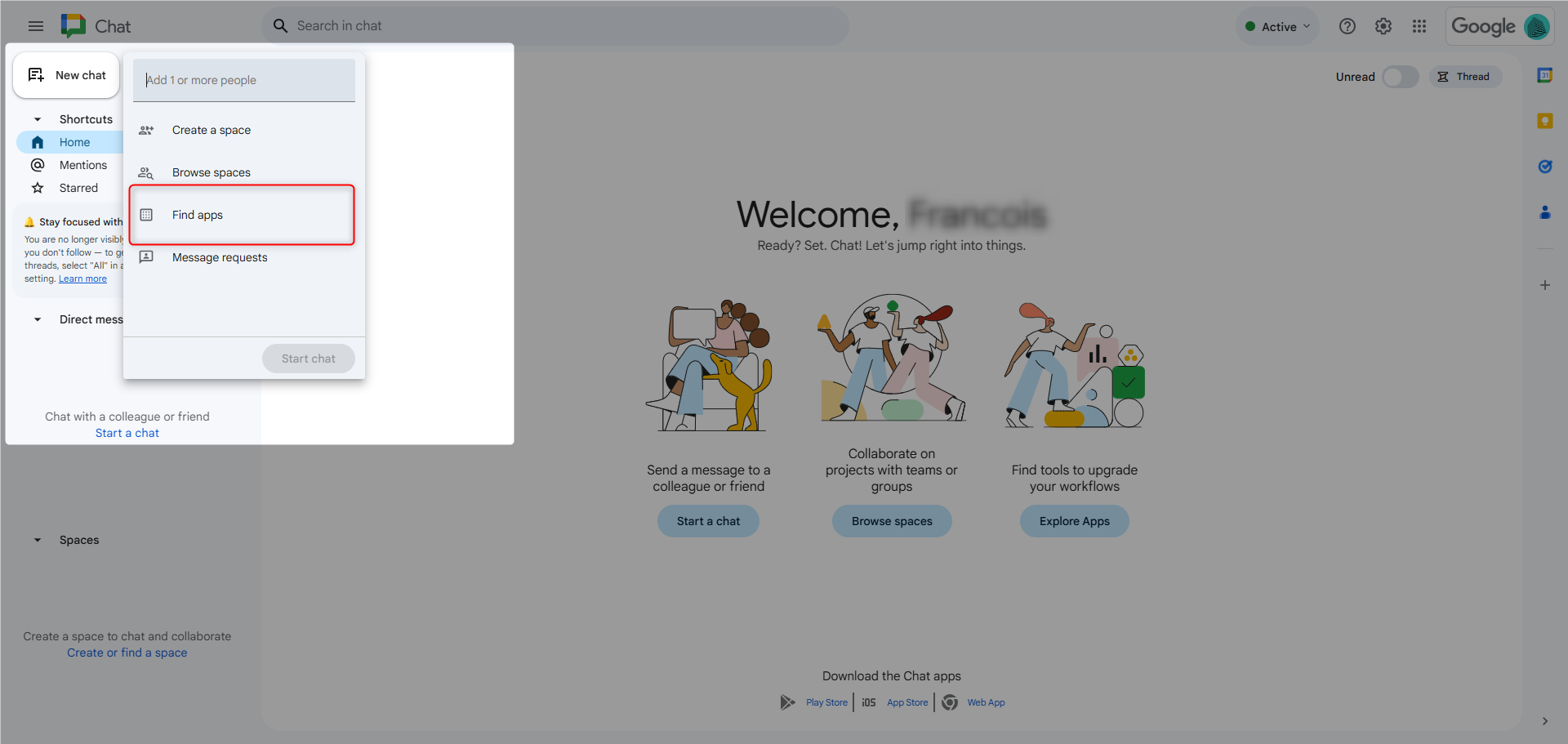
Step 1: Open Google Chat
Open Google Chat on your device or in your browser.
Use the interface to access the application discovery area and find available apps. In Google Chat, this is done through Find apps.
Step 2: Find the Teemant App
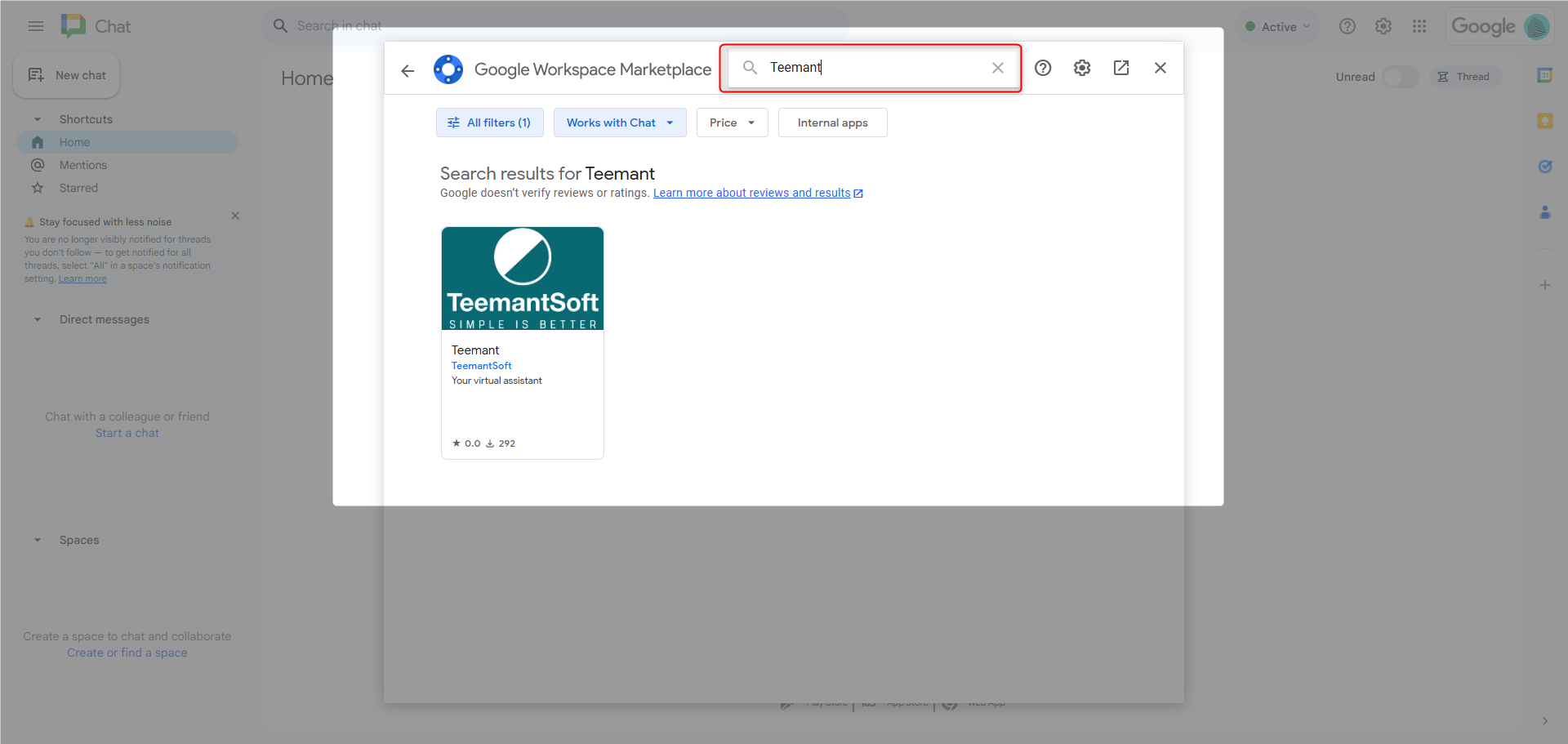
Search for Teemant and open the Teemant app listing. The Teemant app can then be selected to begin installation.
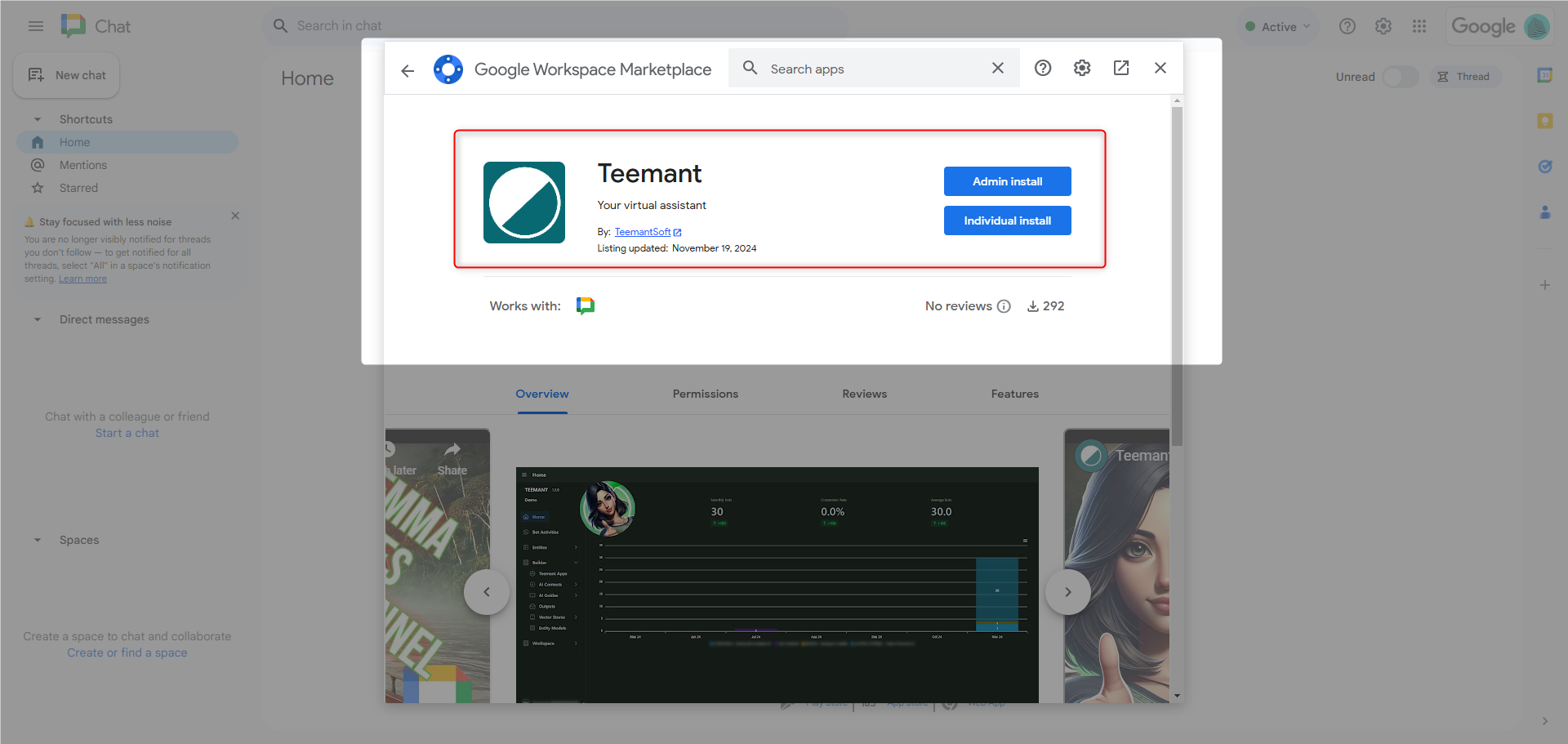
Step 3: Install the App
Depending on your Google Workspace configuration, the app may offer:
- an admin installation option for organization-wide deployment
- an individual installation option for a single user
If your organization deploys Teemant centrally, your administrator may install it for all users or for selected users only. If not, a user may install it individually where allowed by the Google Workspace policies.
Access Conditions
To use the app, users must have:
- access to Google Chat within their organization
- access rights granted through the Teemant configuration
- access to one or more Teemant workspaces when required
As with the Microsoft Teams setup, workspace-level permissions determine which AI agents a user can access.
If a workspace is configured in public mode, all authorized users can interact with the AI agents linked to that workspace.
If a workspace is configured in private mode, only users explicitly assigned to that workspace can access those AI agents.
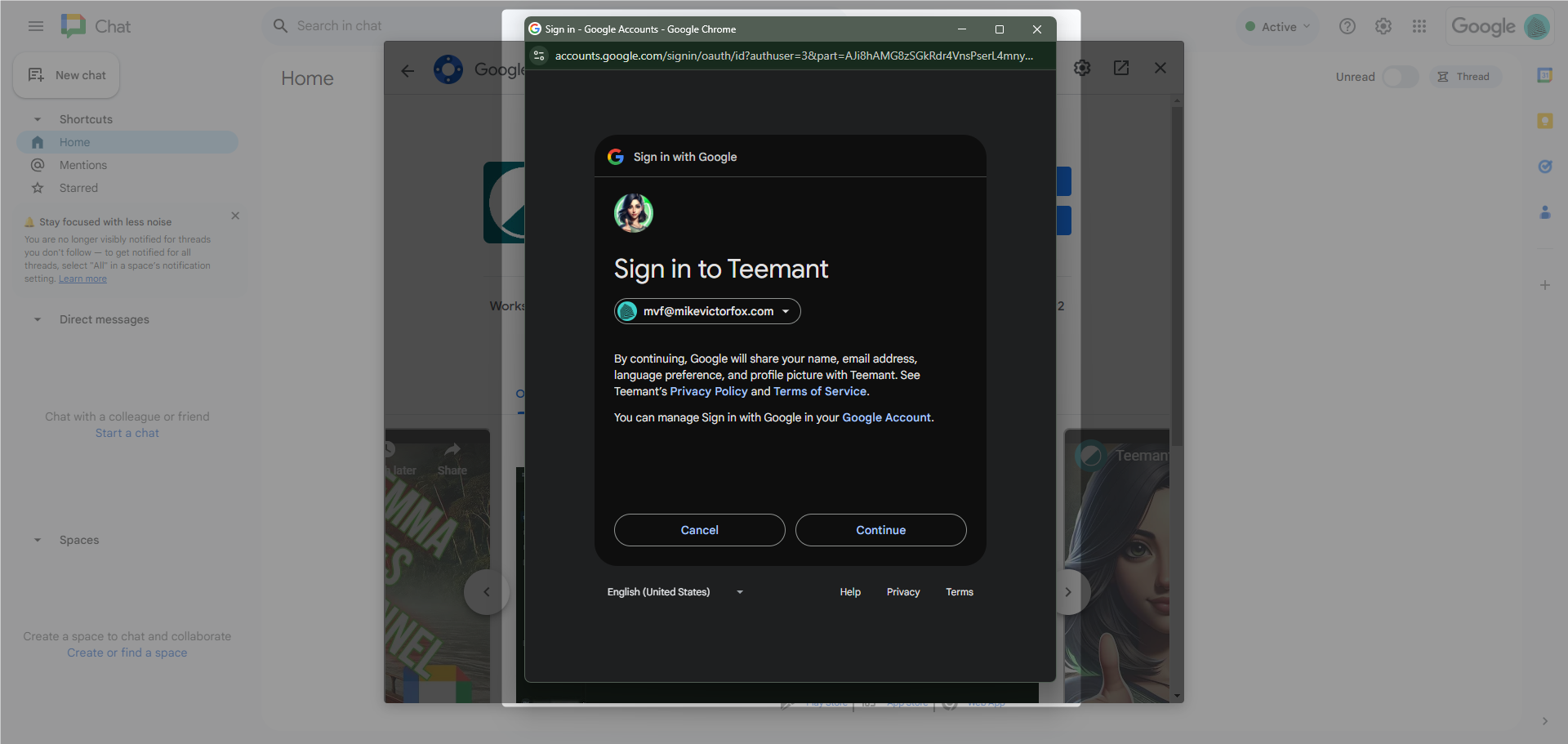
Step 4: Sign In
If the user is already registered as an admin or authorized user in the Teemant platform, they can sign in through Google authentication during the installation or first-use flow.
Step 5: Register with Teemant
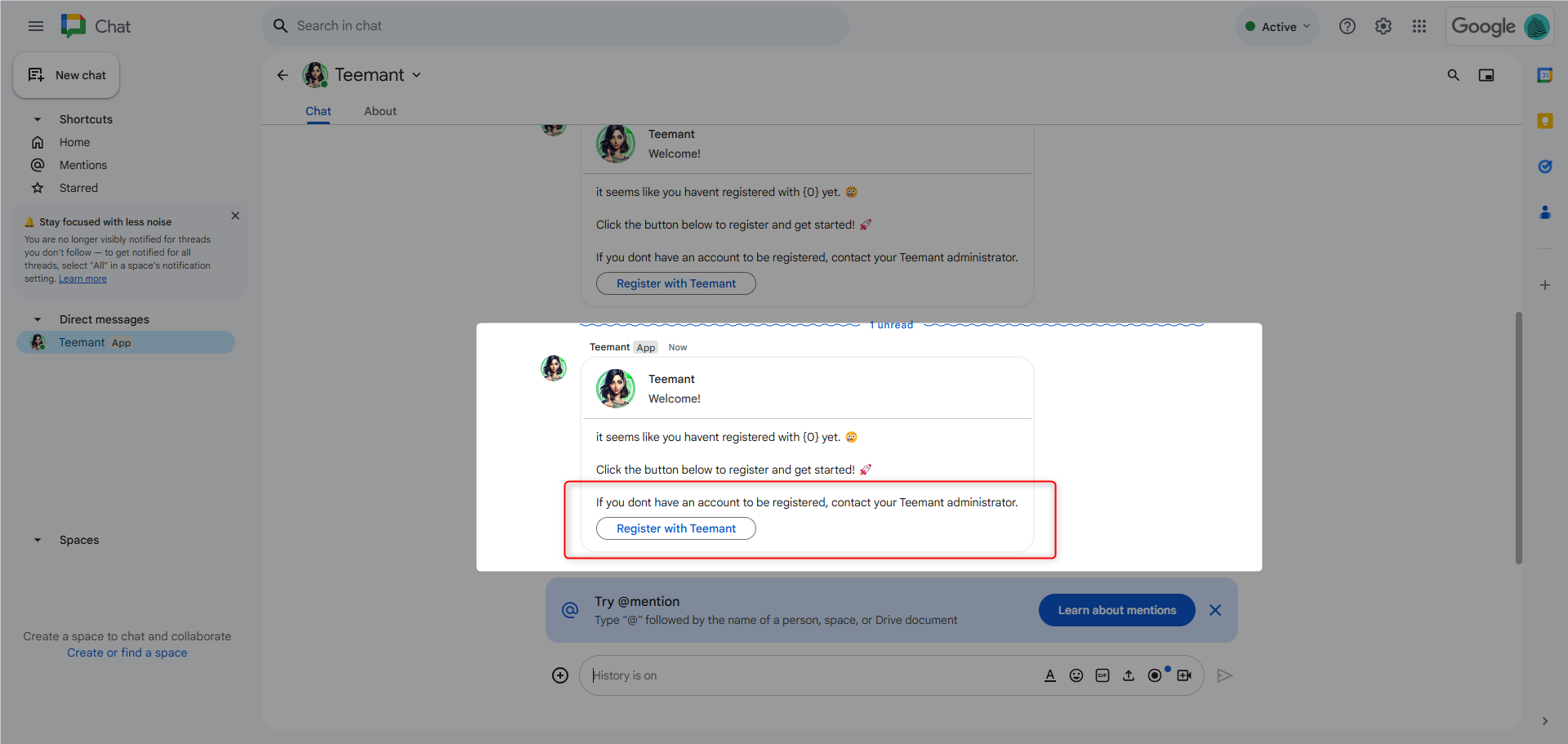
After installation, the Teemant AI agent may prompt the user to register with Teemant before starting to use the service.
Step 6: Configure the Google Chat Connection in Teemant
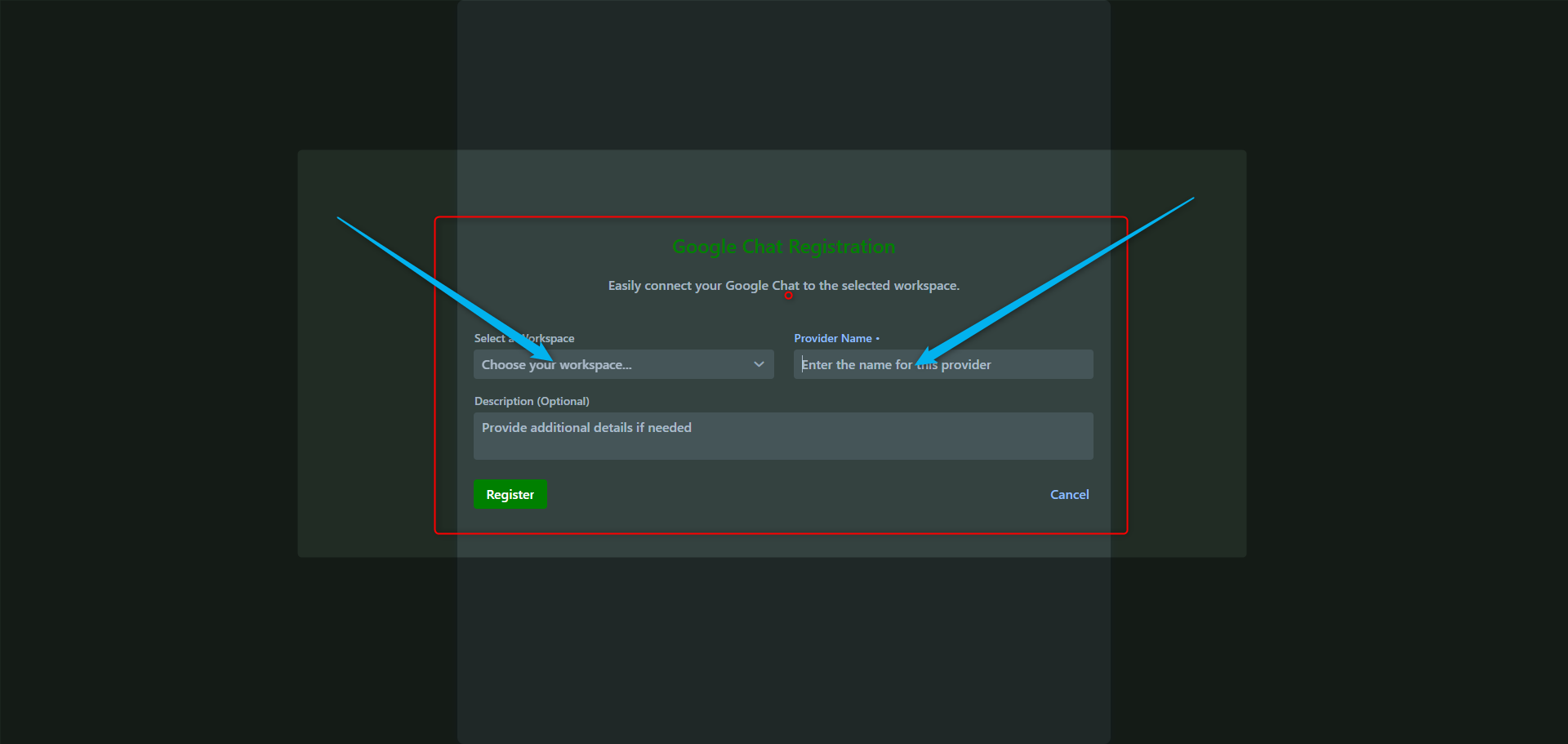
When registering the Google Chat connection, the user or administrator completes the Teemant registration form.
This configuration includes:
1. Workspace selection
Choose the workspace that will be linked to the Google Chat connection.
In many cases, only one workspace is used, but several may exist, for example to separate development, testing, and production environments.
2. Provider name
Enter a provider name for this Google Chat connection.
This name will appear in the Teemant platform among the configured input providers.
3. Description (optional)
Add an optional description or note to make the connection easier to identify in the Teemant platform.
Step 7: Verify the Connection in Teemant
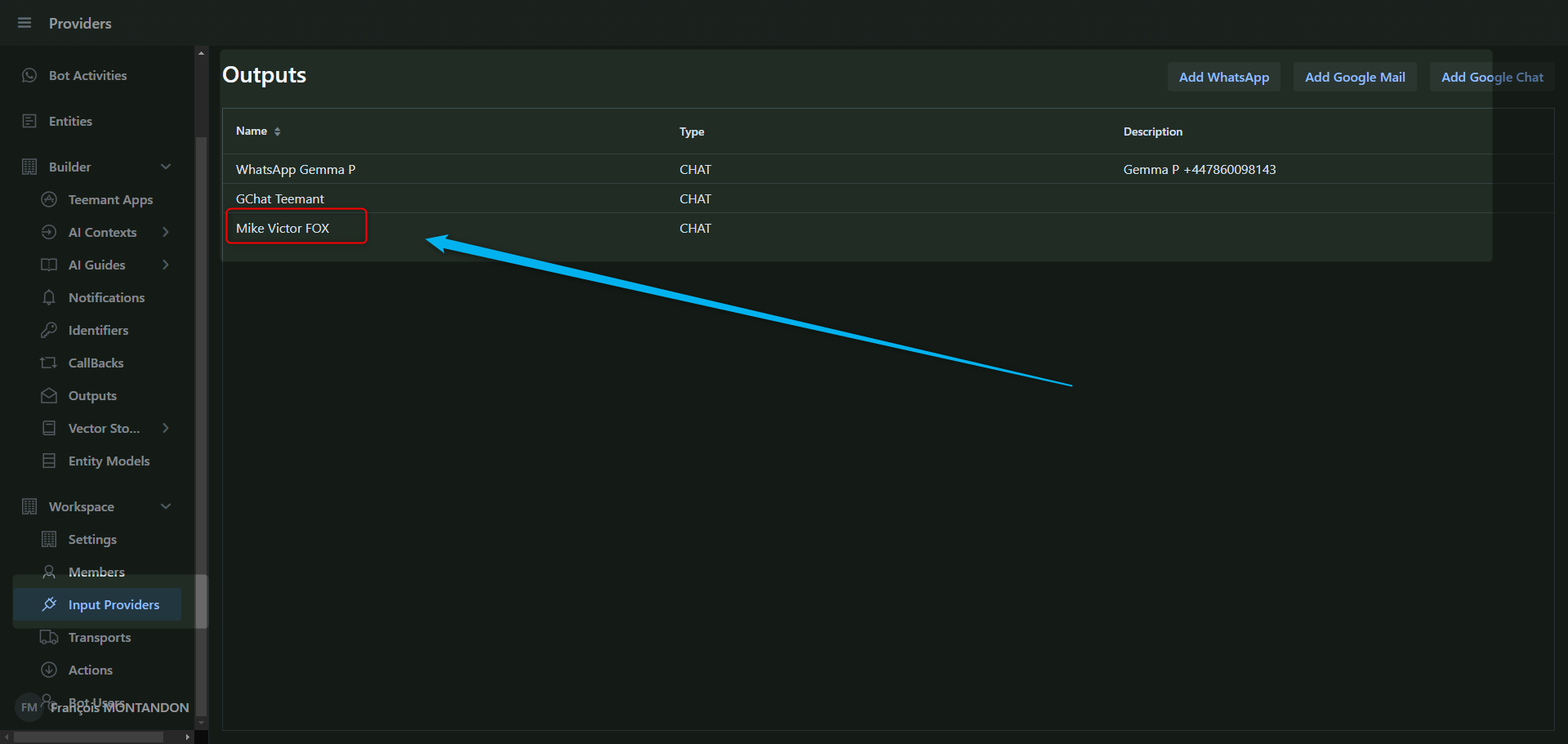
Once registration is complete, log in to the Teemant platform and navigate to the relevant channel or Input Providers section to verify that the Google Chat connection has been created successfully.
The configured provider name should appear in the list of available inputs or channels.