



How to Install the Teemant Application on Microsoft Teams
This guide will walk you through the steps to install and configure the Teemant application within the Microsoft Teams platform.
Easily Install Teemant for Microsoft Teams
The Teemant application allows you to seamlessly interact with Teemant AI agents directly within Microsoft Teams.
Once installed, our AI agents become an integral part of your team, supporting your daily operations and enhancing collaboration across your organization.
Step 1: Access the Microsoft Teams Application
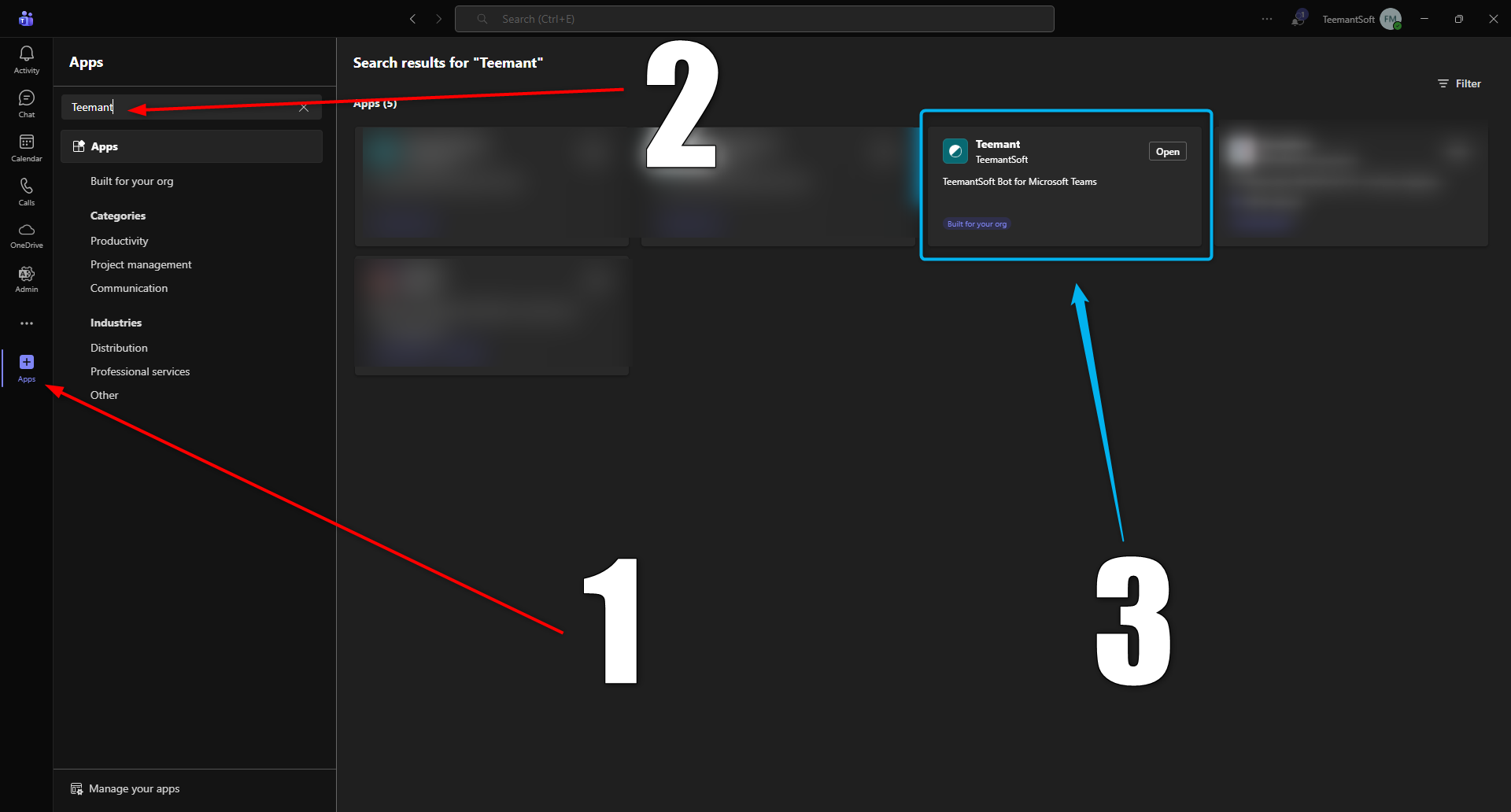
1️⃣ Open the
Microsoft Teams application on your device.
2️⃣ Go to the
“Apps” section and use the search bar to look for
“Teemant.”
3️⃣ Select
Teemant for Microsoft Teams and click
“Open” to start the installation process.
Step 2: Add the Teemant Application
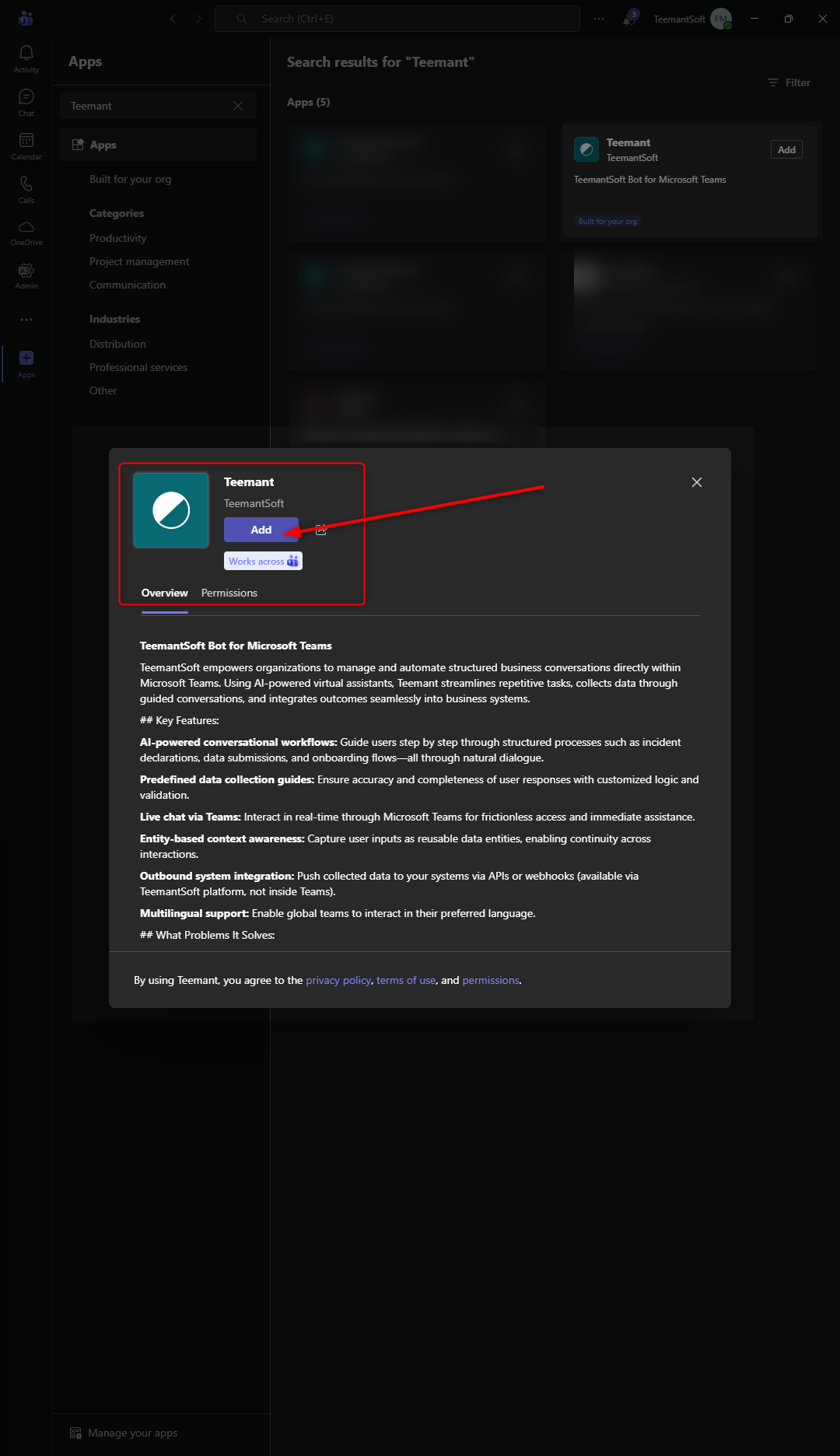
1️⃣ Once you’ve found the
Teemant application in Microsoft Teams, open its details page.
2️⃣ Click the
“Add” button to install the application.
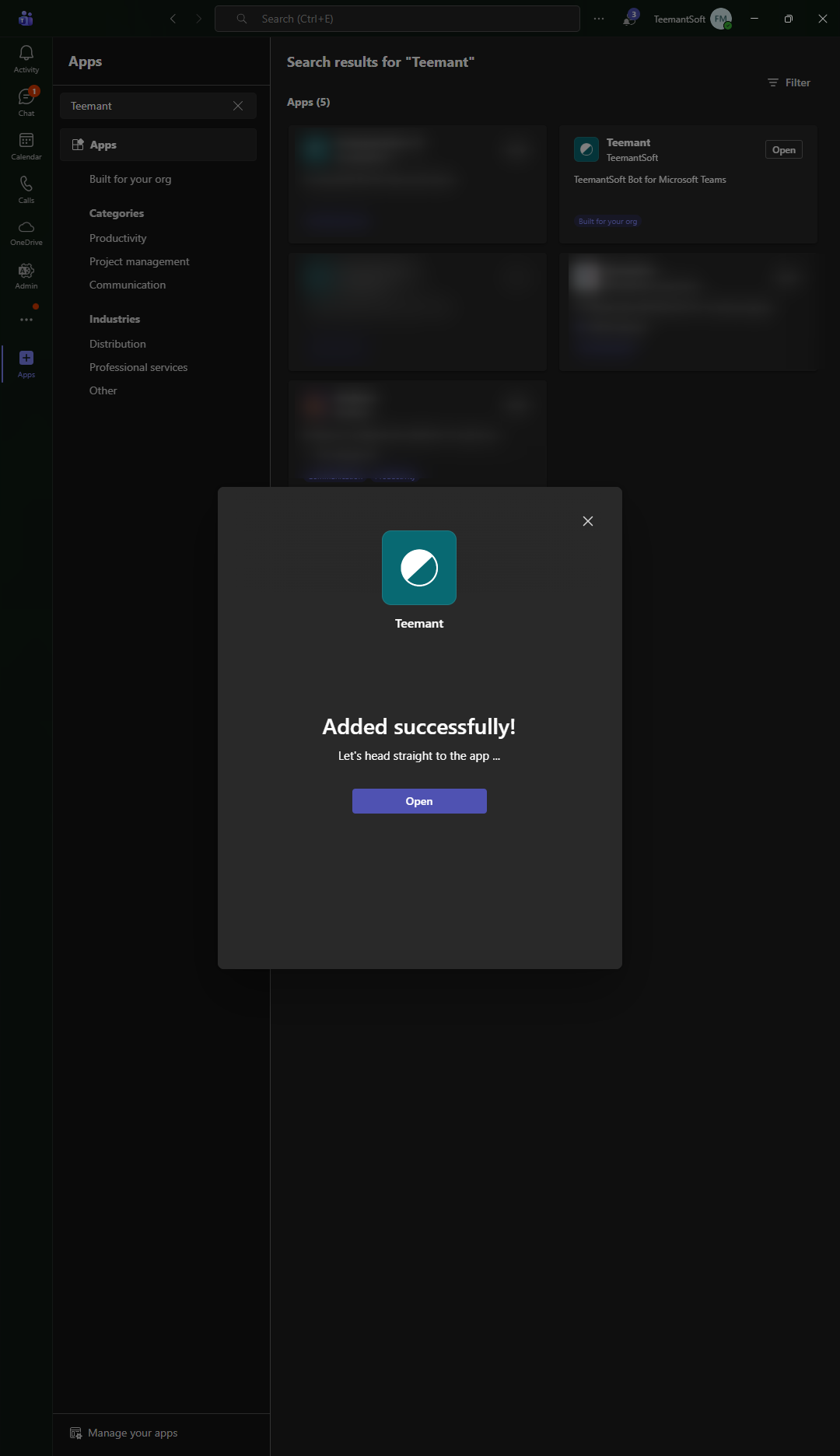
3️⃣ Wait a few seconds — the Teemant app will be added to your Teams environment and ready for setup.
Step 3: Install the Teemant Application
Only users with administrator rights in Microsoft Teams can install the Teemant application.
To use the app, you must have an active TeemantSoft account and access to one or more Teemant workspaces.
Once the installation is complete, the administrator assigns access rights to the relevant workspaces:
- If a workspace is set to public mode, all users authorized by the administrator will be able to interact with the AI agents linked to that workspace.
- If a workspace is set to private mode, only users explicitly added to that workspace will have access to the AI agents.
Step 4: Registration in Teemant
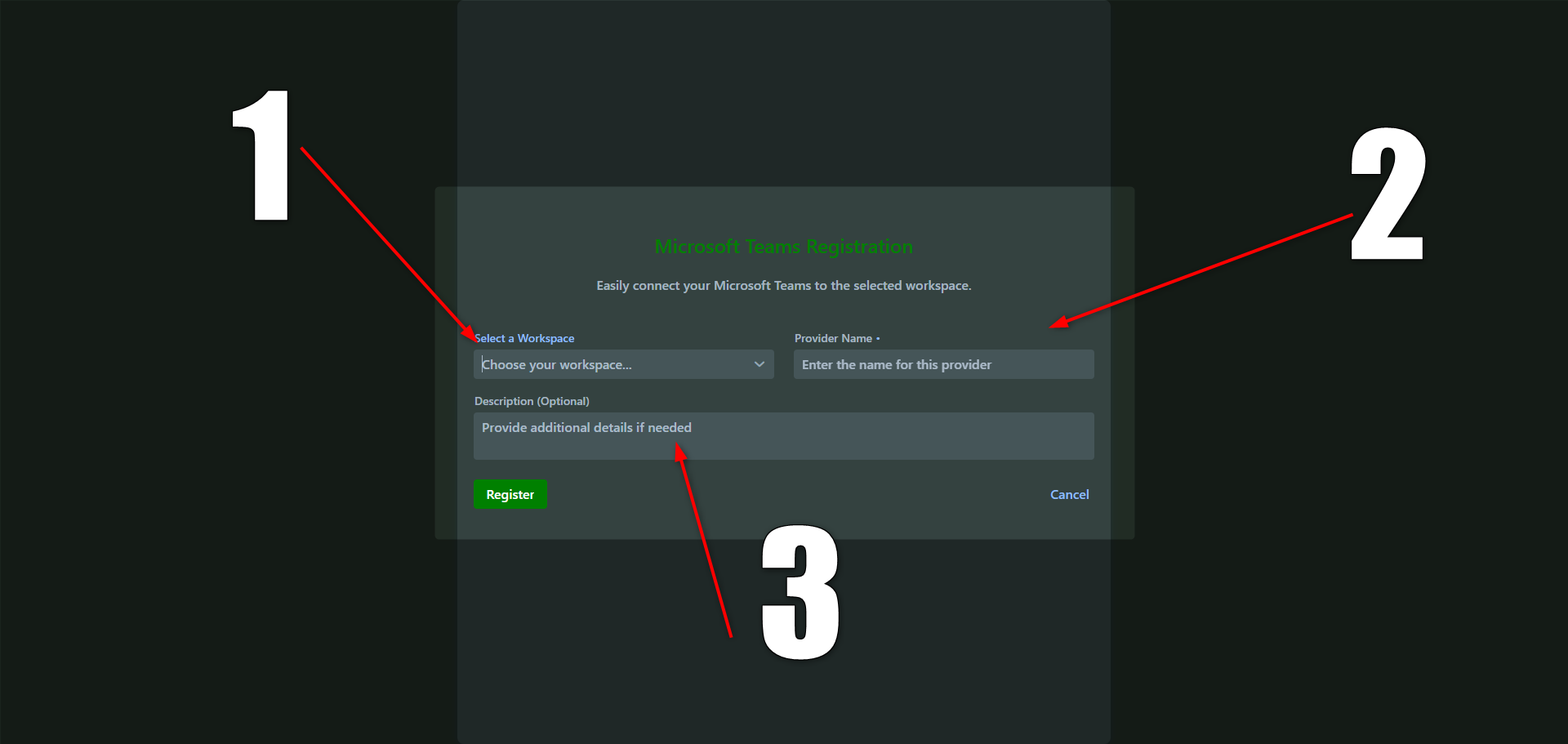
1️⃣ Workspace selection
Choose the workspace or workspaces that users will have access to.
In most cases, only one workspace is used, but there may be several — for example, to distinguish between development, testing, and production environments for AI agents.
2️⃣ Provider name
Assign a name to this connection — it will appear in the list of channels on the Teemant platform.
3️⃣ Description (optional)
Add a comment or note if needed. This information will also be visible in the channel list to make identification easier.
Using the Teemant Bot
Once the application is installed, users can start interacting with the Teemant bot directly in Microsoft Teams.
1️⃣ Workspace selection
If users have access to several workspaces, a menu will appear listing all available workspaces.
They must select the correct one before continuing.
2️⃣ Bot selection
If multiple AI bots are available within the selected workspace, users will be prompted to choose which bot they want to interact with.
After selection, the conversation will start automatically.
3️⃣ Managing the conversation
During the conversation, users can freely exchange with the AI agent.
If an error occurs or they wish to stop the current interaction, they can type the command
/end
to terminate the conversation safely.

